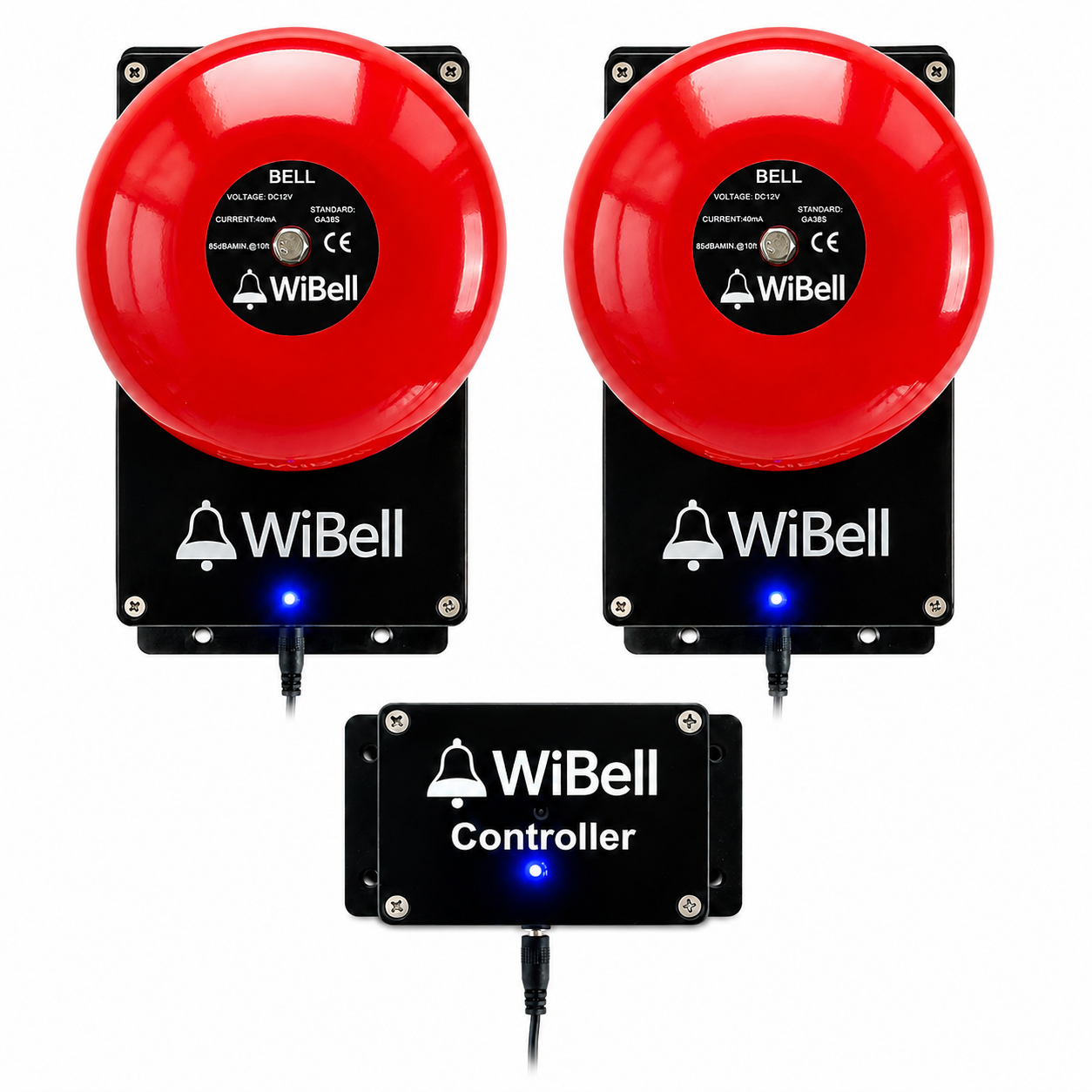
WiBell

πŸ‡ΊπŸ‡Έ Made in USA β€’ Handcrafted

WiFi Bell Controller
No Internet Required

Control your school or facility bell from any phone. 500 schedules. Works completely offline. Built by hand in America.

WiFi Control (No Internet)
500 Schedule Capacity
Works with Any Device
Handcrafted in USA
12V Power (Included)
Battery Backup
WiBell - WiFi Controller

See It In Action

What You'll See

πŸ“±

Simple Web Interface

Easy-to-use dashboard accessible from any phone or computer

⏰

Quick Schedule Setup

Create bell schedules in seconds with our intuitive interface

πŸ””

Instant Bell Control

Manual override button for on-demand bell activation

πŸ’‘

LED Status Indicators

Visual feedback shows system status at a glance

πŸ‡ΊπŸ‡Έ

Handcrafted Quality

Each unit carefully assembled and tested in the USA

Why Choose Our Bell System?

Made in USA

Handcrafted with care in a small garage workshop. Each unit is individually assembled and tested to ensure quality you can trust.

No Internet Required

Works completely offline with its own WiFi network. Control from any device without cloud services or subscriptions.

500 Schedule Capacity

Store up to 500 bell schedules with automatic weekly recurring. Perfect for schools with complex timing needs.

Visual LED Status

Blue LED when schedules are active, red when disabled. Both LEDs flash during bell operation for instant feedback.

Adjustable Duration

Set bell duration from 1-60 seconds to match your needs. Change anytime from the web interface.

Optional WiFi for DST

Optionally connect to your existing WiFi network to automatically sync time and adjust for Daylight Saving Time changes.

RTC Backup Battery

CR2032 coin cell keeps time during power outages. Schedules preserved even when unplugged.

Small Business Support

When you buy from us, you're supporting American manufacturing and a one-person garage operation.

ESP32 Powered

Built on reliable ESP32 microcontroller with professional-grade components for years of dependable service.

Our Story

WiBell was born from a simple question: Why should small facilities pay thousands for a bell system?

It started when a local weekend school needed a reliable bell system. Commercial solutions cost $500-$2000, way too much for a small community organization that only operates a few hours each week. Churches, weekend schools, small daycare centers, and community centers all face the same problem - they need a dependable bell system but can't justify the expense of industrial solutions.

So I built one myself in my garage. Using an ESP32 microcontroller, some basic electronics, and a lot of late nights, WiBell was created. No cloud subscriptions. No complicated installation. Just a simple, reliable WiFi-controlled bell that anyone can set up in minutes.

Today, each WiBell unit is still handcrafted one at a time in that same garage. Every unit is personally assembled, tested, and shipped with care. When you buy a WiBell, you're not just getting a bell controller - you're supporting a small American maker who believes quality technology should be accessible to everyone.

Setup Guide

Get your WiBell up and running in minutes

1

Plug In Power

Connect the included 12V power adapter to your WiBell. The LED will light up indicating power is on.

2

Connect to WiFi

On your phone or computer, go to WiFi settings and connect to the network named WiBell-XXXXXXXX (where XXXXXXXX is unique to your device).

Network: WiBell-XXXXXXXX
Password: 12345678
3

Open Web Interface

Open any web browser and go to:

http://192.168.4.1

You'll see the WiBell control panel where you can manage all settings.

4

Sync Time

Click the "Sync Time" button to set the clock from your device. The time will be stored in the backup battery so it persists during power outages.

5

Add Your Schedules

Create bell schedules by selecting the day, time, and clicking "Add Schedule". You can store up to 500 schedules for complex weekly patterns.

Example School Schedule:

  • Monday-Friday 8:00 AM - School starts
  • Monday-Friday 12:00 PM - Lunch
  • Monday-Friday 3:15 PM - Dismissal

Understanding LED Status

Blue LED On

Schedules are active - bell will ring at scheduled times

Red LED On

Schedules are disabled - no automatic ringing

Both LEDs Flashing

Bell is currently ringing

Optional: Connect to Internet WiFi

Connect WiBell to your home or office WiFi for automatic time synchronization and daylight saving time adjustments. This is optional - WiBell works perfectly offline.

  1. In the web interface, click WiFi Connection
  2. Enter your WiFi network name and password
  3. Click Connect
Note: Only 2.4GHz networks are supported. Time will auto-adjust for daylight saving when connected.

Specifications

WiBell Dimensions
  • Dimensions9.5" H Γ— 6" W
  • Power12V DC adapter (included)
  • WiFi2.4GHz, ~150ft range
  • SchedulesUp to 500 schedules
  • Duration1-60 seconds adjustable
  • Backup BatteryCR2032 coin cell (included)
  • ControllerESP32 microcontroller
  • LED StatusBlue/Red dual indicators
  • AssemblyMade in USA

Frequently Asked Questions

Do I need internet to use WiBell?

No! WiBell creates its own WiFi network. You connect to it directly from your phone or computer. No internet connection, cloud service, or subscription required.

How far does the WiFi reach?

The WiFi signal typically reaches about 150 feet (45 meters) in open areas. Walls and obstacles may reduce this range. You only need to be in range when setting up schedules.

What happens during a power outage?

The CR2032 backup battery keeps the clock running during power outages. When power returns, your schedules resume automatically. The battery lasts 3-5 years under normal use.

What's included in the box?

WiBell comes complete with the controller (with built-in bell), 12V power adapter, and a quick setup card. Everything you need is included.

How accurate is the time?

With the RTC (Real-Time Clock) module and backup battery, time accuracy is within Β±1 second. Without the battery, accuracy is Β±5 seconds.

Can multiple people control it?

Yes! Up to 4 devices can connect to the WiBell WiFi network simultaneously and access the web interface.

What if I forget the WiFi password?

The default password is always 12345678. This password cannot be changed and will always work to connect to the WiBell network.

Does it handle Daylight Saving Time?

If connected to your existing WiFi with internet, WiBell can automatically adjust for DST. Otherwise, you'll need to manually sync the time twice a year.

Can I set different schedules for different days?

Absolutely! You can create unique schedules for each day of the week. Perfect for schools with different bell times on different days.

How do I change the bell duration?

In the web interface, use the "Bell Duration" slider to set how long the bell rings (1-60 seconds). The default is 5 seconds.

Can I test the bell without waiting for a schedule?

Yes! The web interface has a "Ring Now" button that immediately activates the bell for testing purposes.

What devices can I use to control WiBell?

Any device with WiFi and a web browser: smartphones (iPhone, Android), tablets, laptops, or desktop computers. No app installation required.

Troubleshooting

Can't find the WiFi network?

Make sure power is connected and the LED is lit. The network name starts with "WiBell-". Try moving closer to the device.

Can't access 192.168.4.1?

Ensure you're connected to the WiBell WiFi (not your home WiFi). Try disabling mobile data on your phone. Clear browser cache and try again.

Bell not ringing at scheduled time?

Check that the blue LED is on (schedules enabled). Verify the time is synced correctly. Make sure the schedule is set for the correct day.

Time is wrong after power outage?

Connect to WiFi for automatic time recovery, or manually sync time using "Sync Time From Device" button.

Support American Manufacturing

Each WiBell is handcrafted in a garage workshop in the USA. When you purchase from us, you're supporting small business manufacturing and American innovation.

Questions or Custom Orders: [email protected]